
A catalog stalls when every new SKU waits for a studio slot, a retoucher and a consistent background. This guide compares three AI tools for cleaning, staging and art-directing real product photos, then shows how to pilot a small batch and price each approved image.
Quick picks by workflow
The three tools at a glance
 Photoroom
- Best fit
- Cleaning and standardizing large catalogs
- Published plan
- Pro €9.99/month (France; varies by country)
- Workflow
- Cutouts, AI backgrounds, staging, batch, templates; web and mobile
- Key limit
- 6,000 AI credits + 1,000 exports/month; Shopify from Max, 4K from Ultra
 Pebblely
- Best fit
- Lifestyle scenes and simple variations from a real product
- Published plan
- Basic $19/month
- Workflow
- Upload, AI backgrounds with shadows and reflections, 40+ themes or custom prompts, bulk generation
- Key limit
- 200 generated images/month; generated images you discard still use the quota
 Flair AI
- Best fit
- Brand campaigns and reusable art-directed compositions
- Published plan
- Pro+ $35/month billed monthly ($26/month shown with annual billing)
- Workflow
- Drag-and-drop canvas with props, templates, custom models, real-time team collaboration
- Key limit
- 80 images/month; up to 8 standard or 2 fast custom models; instant and ad generation use 4x quota; Company Commercial License listed
Photoroom: catalog cleanup at scale
Photoroom’s ecommerce page lists background removal, AI-generated backgrounds, product staging, batch editing and reusable templates, on web and mobile. In France, Pro was €9.99/month with 6,000 AI credits and 1,000 exports.
Start here if your problem is consistency rather than creativity: mixed supplier shots, uneven backgrounds, inconsistent crops. Core edits such as cutouts and resizing do not draw on AI credits under fair use, while generated backgrounds do. Note that API and MCP access run on a separate allowance, and the Shopify integration starts on Max.
Pebblely: lifestyle scenes from one product photo
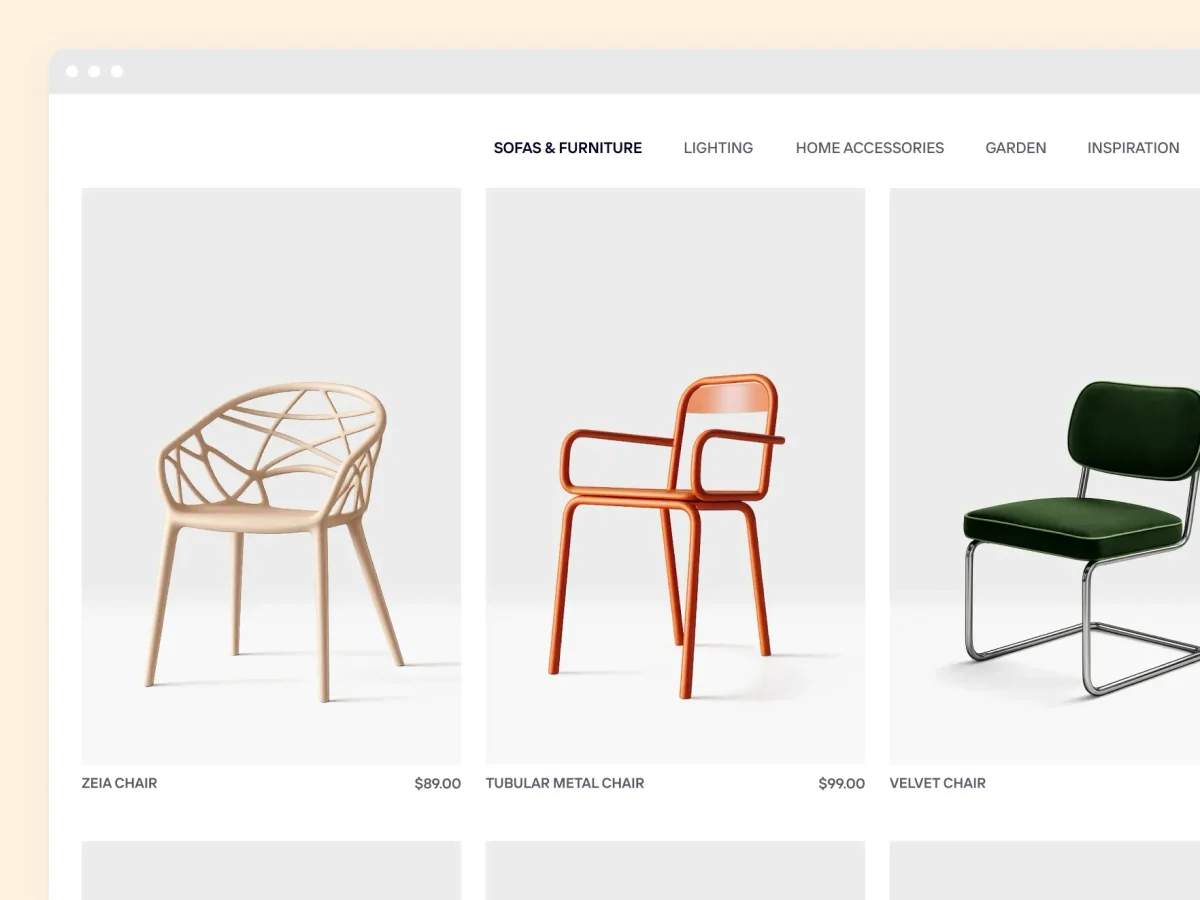
Pebblely’s site describes uploading a product photo and generating backgrounds with shadows and reflections, using 40+ themes or custom prompts. Basic was $19/month for 200 images, with bulk generation.
Use it when a listing needs context, such as a candle on a shelf or a bottle beside fruit, built from the real photo. Read 200 images as 200 generations, not 200 approved assets: rejected attempts use the same quota. Its FAQ covers reference images, social sizes and bulk work; a native Shopify connector or API is not confirmed.

Flair AI: art-directed campaign scenes
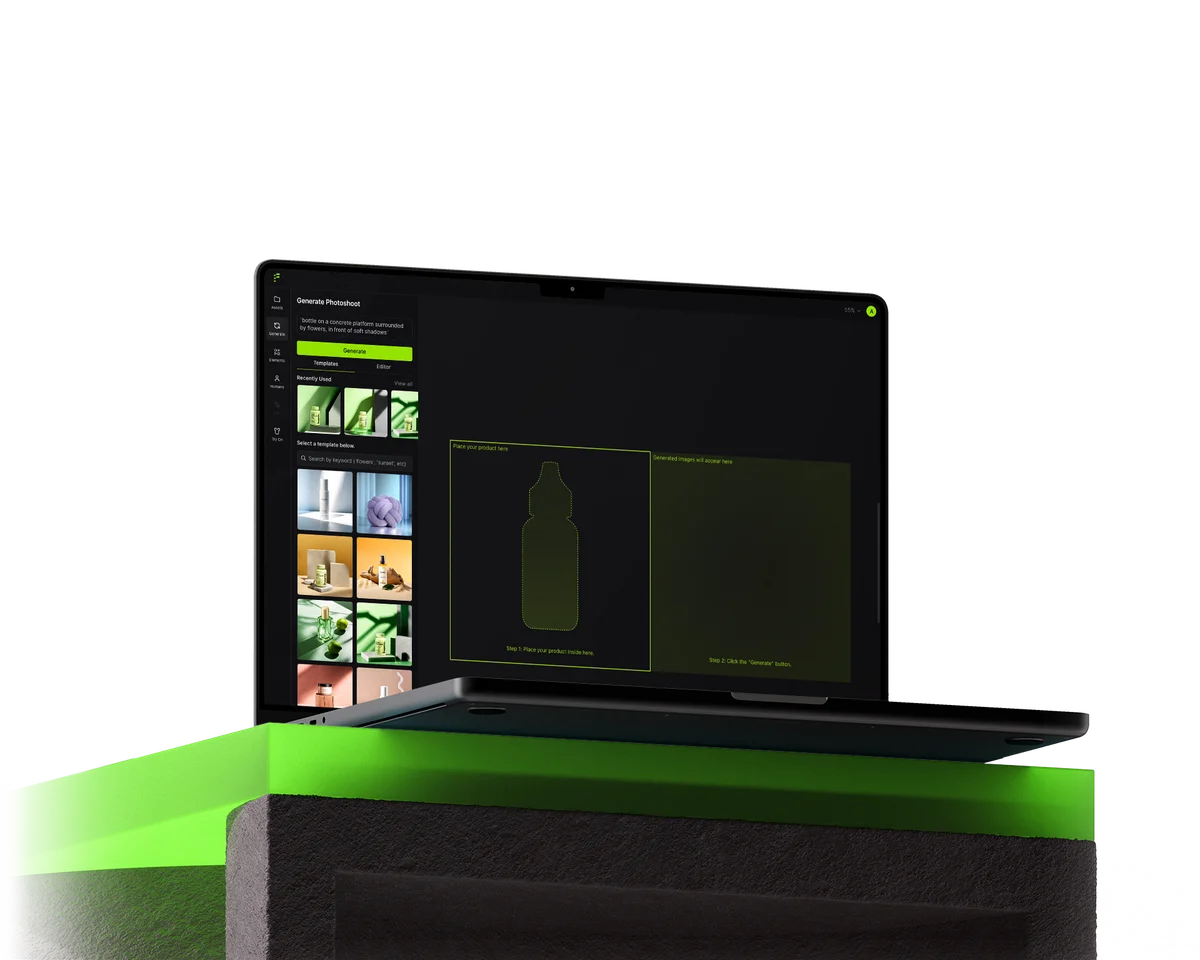
Flair AI’s site presents a drag-and-drop canvas with props, reusable templates, custom models and real-time team collaboration. Pro+ was $35/month billed monthly, with 80 generated images, upscales and variations.
Choose it when a designer or brand lead wants to compose the scene: product placement, props, background, then reuse that layout across a collection. We compare at Pro+ because the cheaper Pro tier does not show an image quota or list the commercial license. The free tier, 5 images and 1 custom model, suits a first look.
Decide which images each product page needs
Before choosing a tool, list the outputs. A neutral packshot shows the real shape; a lifestyle scene tells a use story; a close-up of texture or a label must come from a real photo, not generation. Each image must show the exact SKU and variant on sale.
- Our editorial starting plan is three images per product: packshot, context scene, real detail shot. Adapt it to your category.
- A campaign background is not automatically compliant as a marketplace main image. Check each channel’s current rules before export.
- Keep campaign scenes for ads, social posts and category banners when a channel requires plainer main images.
Prepare the input photo and a fact-based brief
Start with sharp photos showing the label, material and proportions clearly. A smartphone can be suitable. Photograph the same real variant from the front, side and in detail, so the brief does not rely on imagined details.
- Never let the tool imagine a hidden back, an extra accessory or a new color that would read as a fake variant.
- Ask ChatGPT or Claude to draft the brief from product facts: one SKU, target customer, three background ideas, forbidden changes, open questions.
- Keep untouched originals, and do not polish away real defects on used or refurbished goods.
Run a mini-batch pilot before committing
For your pilot, pick six representative SKUs covering glass, a printed label, fabric, jewelry, a matte box and a reflective surface. Plan three views each, so 18 accepted targets, and allow up to two attempts per output, or 36 candidate images.
- Check every candidate for true shape, printed text, logo, color, item count, scale, shadow contact, clean edges and transparency.
- Lay the approved images in one grid across the six SKUs to judge lighting, cropping and consistency together.
- Log the pass rate and the minutes of rework per image; those two numbers decide whether to scale.
Budget per approved image, not per credit
Vendors meter different things: generated images, exports, credits. None of them equals an approved asset. Hypothetical example, not vendor prices or observed results: 20 SKUs with three approved images is 60 assets. With €150 total production cost allocated, that is €2.50 per accepted image; if only 30 pass, it becomes €5.
- Total cost = share of the subscription + any extra usage + retouching labor. Do not count included credits a second time.
- Compare monthly and annual billing separately, and avoid ranking EUR and USD plans through an exchange rate.
- On Photoroom, each saved image is an export, so a corrected re-export counts again.
Hand off approved images to the catalog
Name masters as SKU-variant-view-v1 and store them with the approved product references and background preset. Write alt text that describes what the photo actually shows, then check the mobile thumbnail and zoom. Upload the first approved set manually; automate batches only after the pilot.
- ChatGPT or Claude can draft briefs and alt text grounded in product data; a person approves both before publishing.
- Use Codex or Claude Code to script file naming, CSV preparation and validation checklists. In this workflow, approve the images in the selected photo tool before importing them into the catalog.
- Freed-up team time can go to product selection, supplier negotiation and customer questions. Once photos are approved, move on to video.
FAQ
Which AI product photo tool should I pick?
Match the workflow. Photoroom fits cleaning and standardizing an existing catalog, Pebblely fits lifestyle scenes from one product photo, and Flair AI fits art-directed campaign compositions built on a canvas.
Can AI replace a product photo shoot?
Not entirely. Every tool here starts from a real photo, so shoot the actual product first. AI then changes the setting; it cannot reliably reveal details the camera never captured.
Is there a free plan?
Flair AI listed a free tier with 5 images and 1 custom model. For Photoroom and Pebblely, check current free availability on their pricing pages; Pebblely’s published tiers start at Lite, $9 for 30 images.
Will the product stay accurate?
Check labels, small text, logos, stitching and reflective surfaces in particular. Compare each output with the original and reject changes to shape, color or item count.
Can I use these images on Amazon or Shopify?
Check each channel’s current image rules before export. Photoroom’s Shopify integration starts on Max, not Pro; native connectors for Pebblely or Flair AI are not confirmed, so plan a manual upload.
What budget for 20 or 100 SKUs?
Start from approved images. At three per product, 20 SKUs means 60 assets and 100 SKUs means 300. Divide total allocated cost, including retouching, by accepted images, not by generations.
What role for ChatGPT or Claude?
Give ChatGPT or Claude approved product facts and photos to draft briefs and alt text. Review their proposals against the actual product before use.
Can I reuse these images in product videos?
Yes, but only approved masters. Feeding unchecked images into a video tool carries any wrong label or color into every clip. Lock the photo set first, then follow our ecommerce video guide.
Sources · 20/10/2026
Sources checked 20 October 2026: official Photoroom, Pebblely and Flair AI product and pricing pages (Photoroom prices seen from France, they vary by country). G2 ratings rest on small samples: 20, 2 and 8 reviews.
Next step: product videos
Once the photo set is approved, use it as the source for short product videos.
 AI Product Videos for Ecommerce: 3 Tools Compared in 2026Read the guide →
 Best AI Tools for Ecommerce in 2026: AdCreative vs Brevo vs Tidio vs GetResponseRead the guide →
 Best AI Image Generator in 2026: Complete GuideRead the guide →
Selling clothing? Compare AI fashion models for on-model catalog photos.
Find the best AI tool
215 tools listed with features and pricing. Find the one that fits your needs.