
If the same people ask you every week how to do simple work, the problem is rarely effort. The steps live in one person’s head. A standard operating procedure (SOP) is just a clear, repeatable way to reach a known result. This guide shows how to capture a task once, review the draft, test it with a colleague who did not write it and keep one current version. The aim is to give the owner and the team their focus back for client work, judgment and relationships.
In short
Guidde, Scribe and Tango compared
 Guidde
- Best for
- Narrated software tutorials and visual training, when seeing the sequence matters more than reading it.
- Plan
- Business: 39 USD per creator per month, billed annually (not per team), up to 5 creators.
- AI role
- Turns captured workflows into editable how-to videos with step descriptions and text-to-voice narration.
- Watch out
- Automatic translation and automatic PII redaction are Enterprise only. Business is capped at 5 creators.
 Scribe
- Best for
- Quick-reference written guides with screenshots that people scan while doing the task.
- Plan
- Pro Personal: 25 USD per seat per month, billed annually, 1 seat minimum.
- AI role
- Auto-captures actions into step-by-step guides with screenshots and editable instructions.
- Watch out
- Desktop capture and screenshot redaction are paid only. Price is per seat, billed annually.
 Tango
- Best for
- Software task guides with browser walkthroughs for compatible captures.
- Plan
- Pro: 22 USD per user per month, billed annually, for 1 to 2 users.
- AI role
- AI-generated guide content is included in Pro, not in the free plan.
- Watch out
- Guide Me requires a compatible browser capture and extension. Pinned guidance, workflow translation and automatic redaction require Enterprise.
Guidde: narrated how-to videos from captured workflows
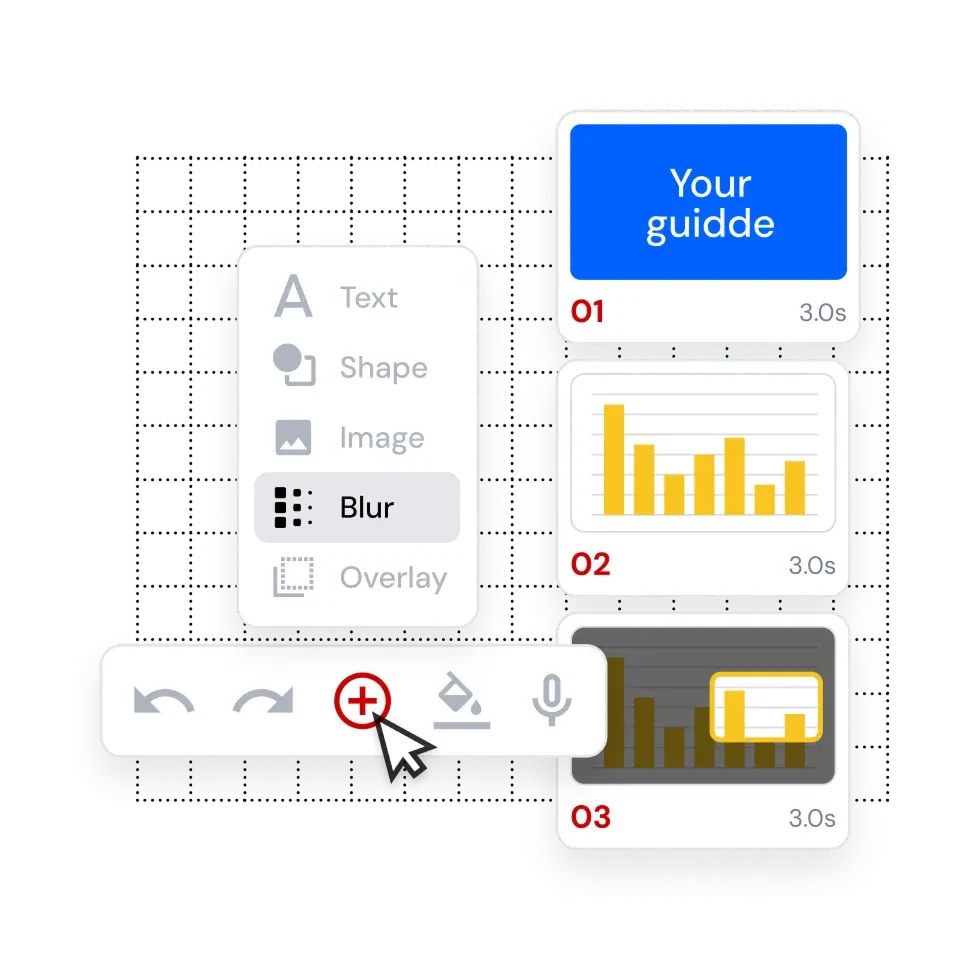
Guidde captures a workflow in the browser or on desktop and converts it into an editable how-to video with step descriptions. Business adds unlimited text-to-voice, video exports and manual blur. It is rated 4.8 on G2 (97 reviews).
Choose it when the order of actions matters more than the text, for instance showing a new hire how a client project is set up. Keep each video to one task, review the narration and step text, and pair it with a short written checklist for quick lookup.
Scribe: written screenshot guides for quick reference
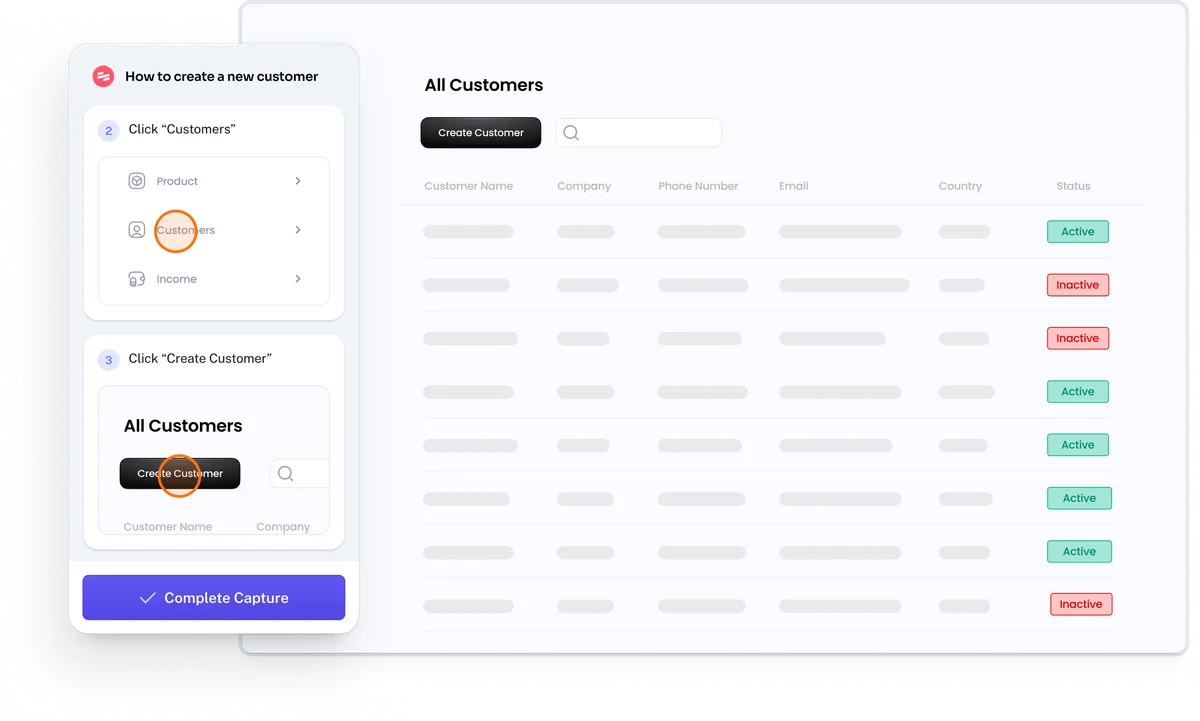
Scribe auto-captures actions into step-by-step guides with screenshots and editable instructions. The free Basic plan offers browser capture with link or embed sharing; Pro Personal adds desktop capture, screenshot redaction and PDF, HTML or Markdown export. G2: 4.8 (978 reviews).
It suits the lookup moment, when someone half-remembers a task and needs step four. Do not count on automatic updates: flagging outdated docs is labelled coming soon. Start with one seat, document the three most asked tasks and watch whether the questions actually stop.
Tango: capture steps and guide colleagues
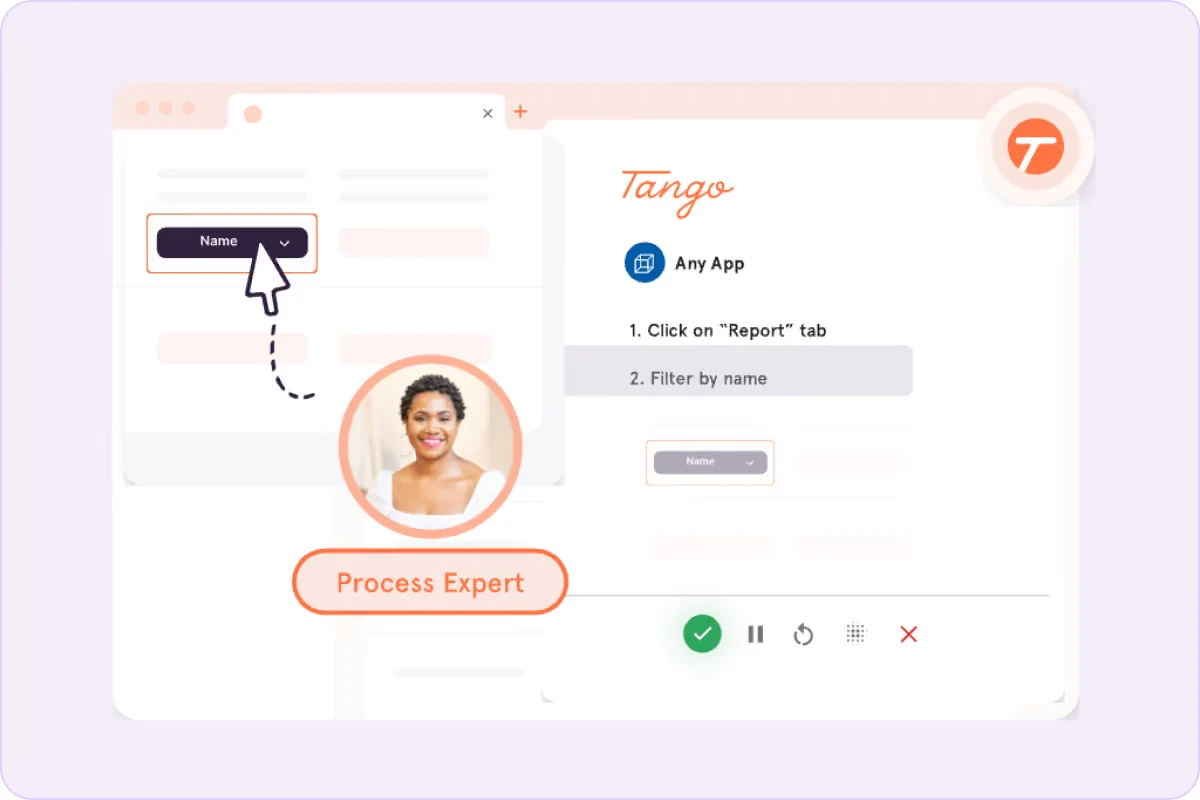
Tango captures software actions as editable screenshot guides. Pro includes AI-generated content and desktop capture. Guide Me works with compatible browser captures and the Chrome or Edge extension; guest access is limited. Pinned guidance and workflow translation belong to Enterprise.
Choose it when colleagues need to follow a software task while looking at the steps. Try the same guide as a workspace member and an invited guest: guests get three Guide Me sessions per workspace. Desktop captures and uploaded screenshots do not support Guide Me.
1. Choose one useful procedure
Start with the task that interrupts you most, not the one that looks impressive. One well-tested procedure teaches you more than ten unread ones.
- List the questions you answered twice this month and the errors that came back. Pick one task done at least weekly, with a clear owner. For a fictional agency, that could be creating a client project from an approved brief.
- Write the normal path in plain verbs: confirm the brief and client code, create the project from the approved template, set the owner, check that the right people have access, then confirm the project is ready for kickoff.
- Give every SOP the same frame: trigger, prerequisites, steps, expected result, exception, owner and review date. Name the exception clearly: if the brief is missing, stop and ask the owner. No person or tool should fill fields with a guess.
2. Capture, then make it usable
Capture tools give you a fast first draft. Turning it into something a colleague can follow alone is the real work. This is our suggested workflow, not a product feature list.
- Prepare the screen before recording: use fictional client data, close your inbox, silence browser notifications and keep passwords, tokens and payment details off screen. This makes the draft easier to review before sharing.
- Edit to one action per step, with a clear verb and the expected result. Explain why only where a decision happens, and take thresholds from your approved policy, never from AI. Redact before publishing, manually or automatically depending on your plan.
- Give the draft to one colleague who did not write it and stay silent while they do the task. Note where they hesitate or get blocked, fix those steps and repeat once. This short test catches what internal proofreading misses.
3. Use ChatGPT or Claude as a drafting partner
A chat assistant can turn rough captured steps into a clean procedure, provided you supply the facts. The model drafts; your team decides and does the work.
- Prompt to paste: “Here are anonymised captured steps and our approved rules. Rewrite them as numbered actions, each with the check that proves it worked, plus the exception, owner and review date. Do not invent clicks, thresholds or permissions. Write TO CONFIRM where unsure.”
- Tiny example. Input: “create client project: open brief, new project, template, add people”. Output: “1. Confirm the brief is approved and note the client code. 2. Create the project from the approved template. 3. Verify permissions.” The draft helps; it does not perform the task.
- Optional for technical teams: Codex or Claude Code can convert an approved SOP into your Markdown template, then check a fictional test repository for broken relative links, a missing owner or a missing review date. Keep it on document files, never on client actions.
4. Roll out in one week: three procedures and cost
Keep the pilot small enough to finish. One week, three tasks and three people tell you more than a long feature comparison ever will.
- Assign three roles: a creator who captures, a reviewer who owns the process and a new reader who follows it cold. Pick three frequent tasks and run them across one week, so each guide is used for real at least once.
- Compare in your actual account: readability of the output, export formats, who can view, and how private and public links behave. Annual pricing is usually per creator or seat, but viewer billing is not universal, so read each plan before inviting everyone.
- Start with one paid creator where the plan allows rather than buying all three tools. For low volume, a lightweight template with manual screenshots is perfectly valid. Remember this is documentation: it never replaces credential rules or grants anyone access.
5. Keep it current and check it helps
A procedure starts ageing the moment the software changes. Clear ownership and a few simple signals keep it trustworthy without turning upkeep into a project.
- Give each SOP an owner, a review date and a change event, such as a new template or tool update. Mark it draft, approved or retired, and point old links to the current version if the tool allows; otherwise update your index.
- Do not assume screens refresh themselves: recapture them when the interface changes. Before and after the pilot, note time to find a procedure, whether readers finished without help, which steps blocked them and which questions repeated. These are signals, not guarantees.
- Views and completions do not prove competence, so ask the person to show the outcome, such as a correctly set up project. The goal is to keep human focus for business decisions, clients and exceptions.
FAQ
Which AI is best for writing SOPs?
It depends on the format your team actually uses. For written lookup guides, a screenshot capture tool fits; for showing a sequence, a narrated video tool; for turning notes into clean text, ChatGPT or Claude. Many teams combine capture with a chat assistant.
What is the best SOP software for a small business?
Start with one process rather than a platform. A capture tool covers most software tasks for a small team, while a full learning management system only makes sense for courses, quizzes or certification. Test three real tasks before committing to anything.
Can AI write my SOP for me?
It can draft one from captured steps and the rules you have approved. It cannot know your thresholds, exceptions or permissions unless you provide them, so an owner must review every step before the procedure is marked as approved and shared.
Can ChatGPT create an SOP?
Yes. It can turn notes or captured steps into numbered actions, expected results and exceptions. It does not observe your process, though, so give it the facts, ask it to mark gaps TO CONFIRM and have a colleague test the result.
What do the free plans include?
Guidde’s free plan allows up to 25 how-to videos, browser only. Tango’s free plan covers 5 shared workflows and up to 10 users with browser capture. Scribe Basic offers browser capture with link or embed sharing. Several AI extras require a paid plan.
Written guide, video or in-app guidance: which format?
Written screenshot guides suit quick lookup in the middle of a task. Short narrated videos suit showing a sequence to someone new. In-app guidance helps people while they work, but it is an extra layer, usually on higher plans, worth adding later.
Do these tools update procedures automatically?
Do not plan on it. Treat every guide as owned content: when the interface or the process changes, the owner recaptures the affected steps. Choose a tool for what it does today, not for features announced as coming soon.
How do I handle sensitive information in guides?
Capture with fictional data and never record passwords. Manual blur or screenshot redaction exists on paid plans, while automatic PII redaction is an Enterprise feature at Guidde and Tango. Check every screenshot before publishing, and never use a guide to share credentials.
Sources · 23/10/2026
Features and pricing checked on official vendor pages on 23 October 2026. Ratings are G2 scores from product reviews.
Related guides
Capture your procedures, make answers easy to find, and connect documentation with training and client onboarding.
 Best AI Training Video Tools for Small Teams in 2026
 AI Client Onboarding for Agencies: 3 Tools Compared (2026)
 AI internal knowledge base assistants for small teams 2026
Find the best AI tool
215 tools listed with features and pricing. Find the one that fits your needs.